Upgrading my Gaming PC with a Solid State Drive (SSD)
It took me years to catch up to the PC Master race when I first started upgrading my PC around 4 years ago. With the recent upgrade to RX 480 GPU my PC stepped into an uncharted territory. But there was still a final piece of puzzle that wasn’t in it’s place but which had the potential to make my PCMR journey to it’s final conclusion. Combine this with the fact that India was about to see a revolution in terms of economy with the new implementation of taxation, that is GST (Goods and Services Tax), I had to act fast. So I finally decided to bite the bullet and finally buy the last piece of the puzzle, an SSD!
I did my research on the forums. I studied the technologies provided by different companies, benchmarks and various kinds of SSD that was available. I studied the price to performance metrics, and price per GB of disk. I watched various youtube videos on YT, including the all too popular channel Linus Tech Tips. All that R&D pointed to me a very clear choice: Samsung Evo 850 250 GB.
| Brand | Model | Capacity (GB) | Price | Price per GB | Link |
| Samsung | 750 EVO | 120 | 4499 | 37 | Link |
| Samsung | 750 EVO | 250 | 7499 | 30 | Link |
| Samsung | 850 EVO | 250 | 7600 | 30 | Link |
| WD | Green | 120 | 3999 | 33 | Link |
| WD | Green | 240 | 6151 | 26 | Link |
| WD | Blue | 250 | 6700 | 27 | Link |
| Kingston | SSDNow UV400 | 120 | 3949 | 33 | Link |
| Kingston | SSDNow UV400 | 240 | 6499 | 27 | Link |
| Kingston | SSDNow V300 | 120 | 4149 | 35 | Link |
| Kingston | SSDNow V300 | 240 | 9179 | 38 | Link |
| Kingston | SSDNow A400 | 120 | 4200 | 35 | Link |
| Kingston | SSDNow A400 | 240 | 6499 | 27 | Link |
| Crucial | MX300 | 275 | 7150 | 26 | Link |
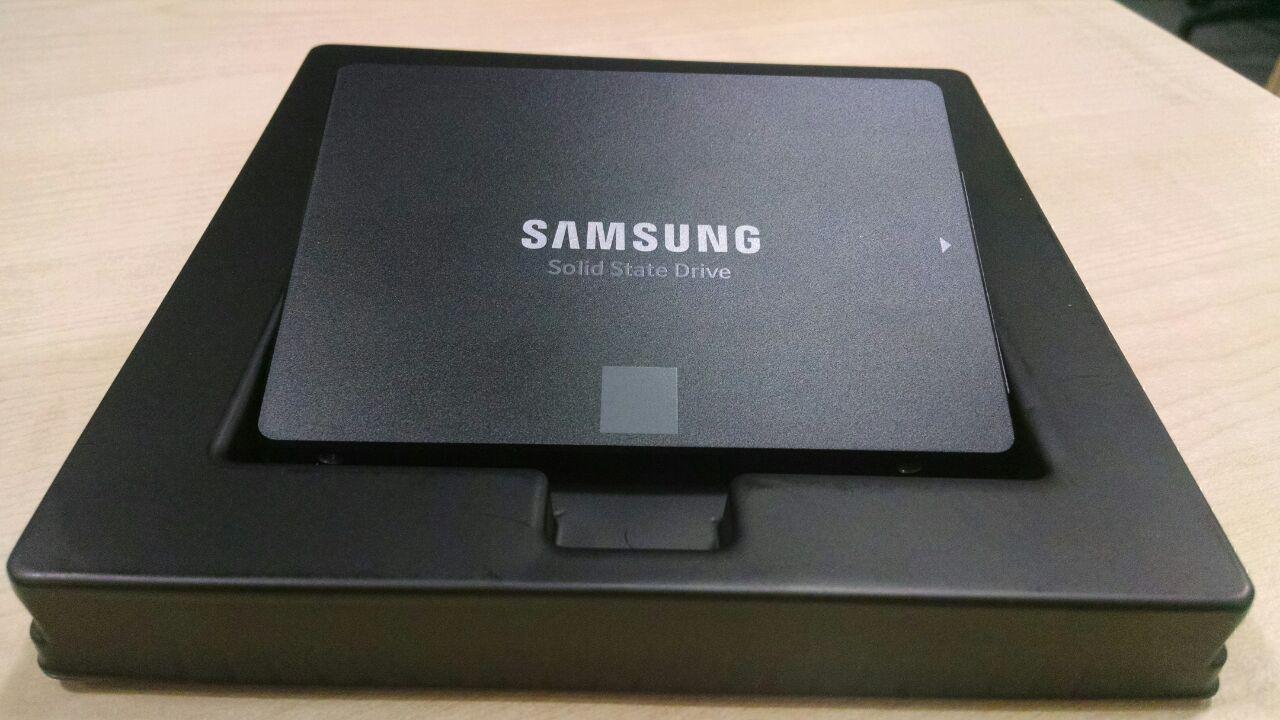 ][1]
][1]This SSD was one of the most technology superior SSD only below the Pro series of SSDs by Samsung. Unlike the Pro series though, Evo series was way better in terms of Price to performance ratio. But what sold me to finally go with Samsung Evo was the fact that it came with the software Samsung Magician. It has a feature which they call Rapid Mode, which when turned on, uses a portion of RAM (about 1 GB at the moment) as an SSD cache to better utilize the resources that we have, and also to increase the longevity of the SSD which is already very good than other competing drive. No this is not a promoted post, rather I am genuinely impressed by the features of Samsung’s Evo SSD.
I choose 250 GB since I needed to install two OS on the drive: Windows 10 and Ubuntu. I needed ample space on Windows 10 to install various big editing tools like Premiere and development IDEs like Visual Studio. With a 250 GB drive (which actually means 232 GB of usable space) I could use both OSes and even leave 20% of the drive empty (which is recommended to have the drive function optimally).
I waited for few days to see if the price of Samsung Evo 250 GB could go down (from Rs 7599), but eventually bought the drive from eBay where I managed to get the same for around Rs 6700. I think it was a great deal considering the fact that GST was about to kick in, and prices could go high soon.
The day I got my SSD, my happiness knew no bounds. I was surprized by the fact that the drive was so tiny and so light that it was baffling to imagine the power it actually hold. I installed the SSD as soon as I could reach home from my workplace and started to install the operating systems. I didn’t have any spare SATA cables lying around so I just borrowed the SATA cable of my optical drive. (At this moment, I was glad I had an optical drive, and didn’t fall in the suggestion from my online friend to do away with it when I was building my PC).
I faced numerous problems making my PC dual boot with Windows 10 and Ubuntu. I could manage to install both the OS on it, but the Ubuntu bootloader (GRUB) didn’t work. After various trial and error, I realized I accidentally made my SSD an MBR disk (when I first launched the Disk Management in windows). So I turned the SSD into a GPT drive (from Disk Management) and this time around after I installed both the OSes, the GRUB menu worked perfectly. I also did have to make a change in the BIOS boot meny, to allow the GRUB to take priority over Windows Boot Manager.
I ended up making following partitions on the SSD:
- /sda1 (150 GB for Windows 10)
- /sda2 (30 GB for Ubuntu)
- /sda3 (NTFS drive without assigning a drive letter and configured later to have Over Provisioning explained below).
And of course there are other partitions made by Windows which it creates before installing.
Over Provisioning is a feature which you can set using Samsung Magician and which allows to set aside a portion of the SSD which will be kept free, since SSDs work best when there is less data on it. After installing the OSes on SSD, setting up over provisioning and running the standard benchmark I was all set to compare some application launch times. Following table shows the comparison of time taken by various activities on my PC before and after installing the SSD.
| Activity | HDD Time | SSD Time | Comment |
| Windows 10 Install | 8:00 | 6:00 | From Install start to first Reboot |
| Ubuntu 16.04 Install | 8:00 | 7:00 | From ubuntu installation beginning to first Reboot |
| Win 10 cold boot to desktop | 0:45 | 0:23 | Time from pressing the power switch to desktop. It includes time to select Windows 10 (which is 3rd option on GRUB menu) and login password prompt. So can be made faster. |
| Boot time to Windows including startup apps | 2:14 | 0:50 | Including various applications loading in background (Dropbox, steam, discord, telegram, IDM and more) and till Firefox’s speed dial tab loads. |
| Boot time of Ubuntu | 0:40 | 0:30 | Time from pressing the power switch to desktop. It includes time of GRUB menu and password prompt. So can be made faster. |
| Applications launch time on cold reboot: | |||
| Adobe Photoshop CS4 | 0:11 | 0:06 | |
| Premiere Pro CC 2014 | 0:17 | 0:08 | |
| VS Studio Community 2017 | 0:07 | 0:03 | |
| Rocket League first time | 0:14 | 0:10 | Time from launching app till 1st car appears skipping the cutscenes |
Note following points regarding above timings:
- These are no way very scientific in numbers.
- Actual time can be decreased, like boot time, by removing the boot menu and password logins.
Here is the Crystal Disk Mark report of the SSD (which is more scientific):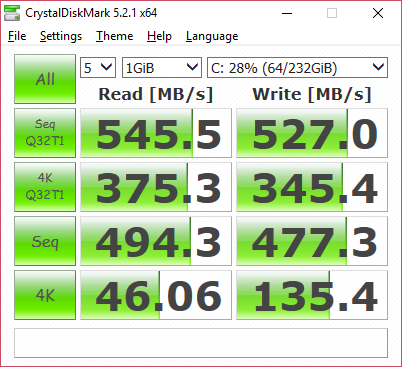
In comparison following are the result of the benchmark on my HDD (WD 1 TB Blue):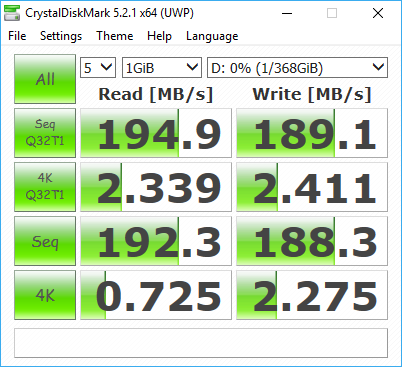
After I enabled the Rapid mode, the results showed around 5X improvements: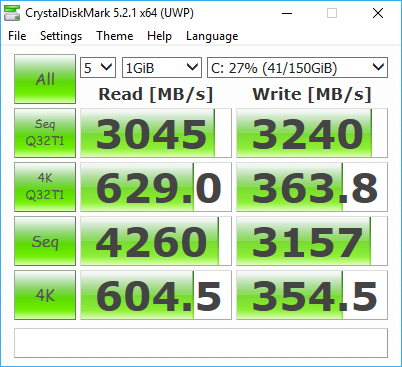
This experience of upgrading to SSD has been really fruitful. Not only I was able to give my PC a big boost in disk performance, but also managed to beat the GST (applicable in India from July 1) due to which (or coincidentally) prices of SSD is now Rs 8295 (up from Rs 7500) on Amazon.in and even better, on eBay.in, from where the original listings have ended and now lowest price is Rs 7699.
All I now need is a new monitor to make a dual monitor setup, a 1 TB HDD to make a RAID array of disk, another GPU to Crossfire for mining cryptocurrency… Oh, the need never ends. 😉